• New Home
  • About
  • Contact
  • Tips & Tutorials
  • Portfolio
  • Digital Downloads
  • SHOP
  • featured in
  • INSTAGRAM
Menu

JoAnna Seiter

  • New Home
  • About
  • Contact
  • Tips & Tutorials
  • Portfolio
  • Digital Downloads
  • SHOP
  • featured in
  • INSTAGRAM
1-JoAnna-Seiter_Square.jpg

JoAnna’s Tips & Tutorials

Hi, I’m JoAnna, thanks for stopping by! I love creating textile and surface pattern designs, sewing, and painting. I’m always learning new things and want to share some of that info with you. I hope to bring you a helpful tutorial or a quick little tip each week.


Latest Posts:

Featured
Cameo 4 Foil Quill Alternative
June 7, 2022
Cameo 4 Foil Quill Alternative
June 7, 2022
Read more →
June 7, 2022
Silhouette Cameo 4 Fine Tip Foil Quill Adapter
May 31, 2022
Silhouette Cameo 4 Fine Tip Foil Quill Adapter
May 31, 2022
Read more →
May 31, 2022
Shrink Plastic Pins with the Cricut Maker
March 15, 2022
Shrink Plastic Pins with the Cricut Maker
March 15, 2022
Read more →
March 15, 2022
Making Pins using Black Shrink Plastic and the Foil Quill
March 8, 2022
Making Pins using Black Shrink Plastic and the Foil Quill
March 8, 2022
Read more →
March 8, 2022
Another Style of Watercolor Clipart in Procreate
March 1, 2022
Another Style of Watercolor Clipart in Procreate
March 1, 2022
Read more →
March 1, 2022
Creating Watercolor Style Clip Art in Procreate to Use With Your Cricut or Silhouette Machine
February 22, 2022
Creating Watercolor Style Clip Art in Procreate to Use With Your Cricut or Silhouette Machine
February 22, 2022
Read more →
February 22, 2022
Creating Gouache Style Clip Art in Procreate to Use With Your Cricut or Silhouette Machine
February 15, 2022
Creating Gouache Style Clip Art in Procreate to Use With Your Cricut or Silhouette Machine
February 15, 2022
Read more →
February 15, 2022
Creating a Single Line SVG File in the Adobe Illustrator App Using Vectorize
February 8, 2022
Creating a Single Line SVG File in the Adobe Illustrator App Using Vectorize
February 8, 2022
Read more →
February 8, 2022
Creating Your Own Single Line SVG File - Part Three
February 1, 2022
Creating Your Own Single Line SVG File - Part Three
February 1, 2022
Read more →
February 1, 2022
Creating Your Own Single Line SVG Files - Part Two
January 25, 2022
Creating Your Own Single Line SVG Files - Part Two
January 25, 2022
Read more →
January 25, 2022
Creating Your Own Single Line SVG Files - Part One
January 18, 2022
Creating Your Own Single Line SVG Files - Part One
January 18, 2022
Read more →
January 18, 2022
Low Poly Heart Box
January 11, 2022
Low Poly Heart Box
January 11, 2022
Read more →
January 11, 2022
Planner Stickers with the WRMK Foil Quill
January 4, 2022
Planner Stickers with the WRMK Foil Quill
January 4, 2022
Read more →
January 4, 2022
3D Cardstock Snowflakes
December 28, 2021
3D Cardstock Snowflakes
December 28, 2021
Read more →
December 28, 2021
Portrait 3 Print and Cut Gift Labels
December 21, 2021
Portrait 3 Print and Cut Gift Labels
December 21, 2021
Read more →
December 21, 2021
DIY Gift Card Envelopes
December 14, 2021
DIY Gift Card Envelopes
December 14, 2021
Read more →
December 14, 2021
Blade Replacement Alternatives for Portrait 3
December 7, 2021
Blade Replacement Alternatives for Portrait 3
December 7, 2021
Read more →
December 7, 2021
12 Gift Ideas for Someone Who Owns a Cricut or Silhouette Machine
November 30, 2021
12 Gift Ideas for Someone Who Owns a Cricut or Silhouette Machine
November 30, 2021
Read more →
November 30, 2021
Foiling on Acrylic with Cricut and WRMK Foil Quill
November 23, 2021
Foiling on Acrylic with Cricut and WRMK Foil Quill
November 23, 2021
Read more →
November 23, 2021
How to Set Up Your Template on Your Cutting Mat for Silhouette Users
November 16, 2021
How to Set Up Your Template on Your Cutting Mat for Silhouette Users
November 16, 2021
Read more →
November 16, 2021
Etching on Acrylic with the Silhouette Portrait 3
November 9, 2021
Etching on Acrylic with the Silhouette Portrait 3
November 9, 2021
Read more →
November 9, 2021
Foil Quill on Acrylic with the Portrait 3
November 2, 2021
Foil Quill on Acrylic with the Portrait 3
November 2, 2021
Read more →
November 2, 2021
Scoring with the Portrait 3 Using the Cricut Scoring Stylus
October 26, 2021
Scoring with the Portrait 3 Using the Cricut Scoring Stylus
October 26, 2021
Read more →
October 26, 2021
Silhouette Portrait 3 Scoring with the Bevel Quill
October 19, 2021
Silhouette Portrait 3 Scoring with the Bevel Quill
October 19, 2021
Read more →
October 19, 2021
Tips for Using the WRMK Fine Tip Foil Quill with the Silhouette Portrait 3
October 12, 2021
Tips for Using the WRMK Fine Tip Foil Quill with the Silhouette Portrait 3
October 12, 2021
Read more →
October 12, 2021
Using the Trace Tool in Silhouette Studio
October 5, 2021
Using the Trace Tool in Silhouette Studio
October 5, 2021
Read more →
October 5, 2021
Using the Silhouette Portrait 3 Pixscan Mat to Cut Stickers
September 28, 2021
Using the Silhouette Portrait 3 Pixscan Mat to Cut Stickers
September 28, 2021
Read more →
September 28, 2021
Cricut Snap Mat Feature to Cut Stickers
September 21, 2021
Cricut Snap Mat Feature to Cut Stickers
September 21, 2021
Read more →
September 21, 2021
Cutting Full Sticker Sheets with Your Cricut - Part 3 - Final Cutting
September 14, 2021
Cutting Full Sticker Sheets with Your Cricut - Part 3 - Final Cutting
September 14, 2021
Read more →
September 14, 2021
Cutting Full Sticker Sheets with Your Cricut - Part 2 - Test Printing
September 7, 2021
Cutting Full Sticker Sheets with Your Cricut - Part 2 - Test Printing
September 7, 2021
Read more →
September 7, 2021

Digital Downloads

Featured
Floral Easter Egg Single Line SVG Files
$2.00

Floral Easter egg single line SVG files for use with Cricut and Silhouette machines or any machine that can use an SVG, DXF, EPS, PNG, or JPEG files. This artwork is designed as a DRAW file, and is intended for use with the foil quill, foil transfer tool, drawing pens, engraving tip, debossing tip or any other tools that require a draw file.

The drawings can easily be scaled up or down in Cricut Design Space, Silhouette Studio, Illustrator or any program that recognizes SVG files.

I have tested these files on my Cricut Maker and Silhouette Cameo 4 machines, if you have any questions regarding how to use these files, please let me know and I will do my best to help you.

Please note: Cricut Design Space does NOT retain the colored lines, you will need to manually assign colors in Design Space if you plan to use a colored version of these designs. Also, since these illustrations are very detailed, Design Space takes a little longer to process the artwork.

**This listing is for INSTANT DIGITAL DOWNLOAD FILES - no physical items will be sent to you.**

You will receive a zip file with SVG, EPS, DXF, JPEG, and PNG files for each design.

IMPORTANT: This file is for personal and small commercial use (under 500 units) only. Crediting designs to JoAnna Seiter Designs is appreciated, but not required. Please contact me if you would like to license for larger commercial use. You may NOT re-sell, alter, or distribute the digital file or physical prints of this file.

Read more →
Carnation Flower Single Line SVG File, Botanical Floral Clip Art, Instant Digital Download
$3.00

Eight single line SVG files of carnation flowers. For use with Cricut and Silhouette machines or any machine that can use an SVG, DXF, EPS, PNG, or JPEG file. This artwork is designed as a DRAW file, and is intended for use with the foil quill, foil transfer tool, drawing pens, engraving tool, debossing tool or any other tools that require a draw file.

The drawings can easily be scaled up or down in Cricut Design Space, Silhouette Studio, Illustrator or any program that recognizes SVG files.

The offset layer is included in the SVG, EPS, and DXF files, it can quickly be turned off or removed in your design software. The JPEG and PNG files do not have the offset included.

**This listing is for INSTANT DIGITAL DOWNLOAD FILES - no physical items will be sent to you.**

I have tested these files on my Cricut Maker and Silhouette Cameo 4 machines, if you have any questions for how to use these files please let me know and I will do my best to help you.


You will receive a zip file with separate folders containing SVG, EPS, DXF, JPEG, and PNG files for each design. You will need to unzip the file to access the files.

IMPORTANT: This file is for personal and small commercial use (under 500 units) only. Crediting designs to JoAnna Seiter Designs is appreciated, but not required. Please contact me if you would like to license for larger commercial use. You may NOT re-sell, alter, or distribute the digital file or physical prints of this file.

Read more →
Daffodils_Main Page-01.jpg
Daffodil Flower Single Line SVG Files
$3.00

Six single line SVG files of daffodil flowers. For use with Cricut and Silhouette machines or any machine that can use an SVG, DXF, EPS, PNG, or JPEG file. This artwork is designed as a DRAW file, and is intended for use with the foil quill, foil transfer tool, drawing pens, engraving tool, debossing tool or any other tools that require a draw file.

The drawings can easily be scaled up or down in Cricut Design Space, Silhouette Studio, Illustrator or any program that recognizes SVG files.

The offset layer is included in the SVG, EPS, and DXF files, it can easily be turned off or removed in your design software. The JPEG and PNG files do not have the offset included.

**This listing is for INSTANT DIGITAL DOWNLOAD FILES - no physical items will be sent to you.**

I have tested these files on my Cricut Maker and Silhouette Portrait 3 machines, if you have any questions for how to use these files please let me know and I will do my best to help you.

You will receive a zip file with separate folders containing SVG, EPS, DXF, JPEG, and PNG files for each design. You will need to unzip the file to access the files.

IMPORTANT: This file is for personal and small commercial use (under 500 units) only. Crediting designs to JoAnna Seiter Designs is appreciated, but not required. Please contact me if you would like to license for larger commercial use. You may NOT re-sell, alter, or distribute the digital file.

Read more →
Lilies_Main Page-01.jpg
Lily Single Line SVG Files
$2.00

Four single line SVG files depicting lily flowers. For use with Cricut and Silhouette machines or any machine that can use an SVG, DXF, EPS, PNG, or JPEG file. This artwork is designed as a DRAW file, and is intended for use with the foil quill, foil transfer tool, drawing pens, engraving tool, debossing tool or any other tools that require a draw file.

The drawings can easily be scaled up or down in Cricut Design Space, Silhouette Studio, Illustrator or any program that recognizes SVG files.

The offset layer is included in the SVG, EPS, and DXF files, it can easily be turned off or removed in your design software. The JPEG and PNG files do not have the offset included.

**This listing is for INSTANT DIGITAL DOWNLOAD FILES - no physical items will be sent to you.**

I have tested these files on my Cricut Maker and Silhouette Portrait 3 machines, if you have any questions for how to use these files please let me know and I will do my best to help you.

You will receive a zip files with separate folders containing SVG, EPS, DXF, JPEG, and PNG files for each design. You will need to unzip the file to access the folders and files.

IMPORTANT: This file is for personal and small commercial use (under 500 units) only. Crediting designs to JoAnna Seiter Designs is appreciated, but not required. Please contact me if you would like to license for larger commercial use. You may NOT re-sell, alter, or distribute the digital file.

Read more →
3D Low Poly Heart Box SVG File
$2.00

An SVG file for creating a low poly 3D heart box using a Cricut or Silhouette cutting machine. This is an excellent beginner project, you will need to know how to score and cut with your machine. Great for Valentine's Day treats, wedding favors, or small trinkets.

**This listing is for INSTANT DIGITAL DOWNLOAD FILES - no physical items will be sent to you.**

Instructions for Cricut Design Space are provided. I have a Cricut Maker machine, if you have any questions for how to use these files please let me know and I will do my best to help you.

Finished Box Dimensions: 4.375 inches wide x 4.5 inches tall x 2 inches deep (11.11cm wide x 11.43cm tall x 5.08cm deep)

You will receive a zip file containing an SVG, PDF, EPS, DXF, JPEG, and PNG files, and a PDF file containing the instructions for Cricut machines.

IMPORTANT: This file is for personal and small commercial use (under 500 units) only. Crediting designs to JoAnna Seiter Designs is appreciated, but not required. Please contact me if you would like to license for larger commercial use. You may NOT re-sell, alter, or distribute the digital file or physical prints of this file.

Read more →
Month, Day, Numbers Single Line SVG files
$2.00

Script style single line SVG clip art files for calendars and planners. Please note, this is not a font!!

There are twelve months, seven days, and 31 numbers for you to use to make calendars, planners, cards, etc. These files are designed to be used with a Cricut or Silhouette machine as DRAW files. They are intended for use with the foil quill, foil transfer tool, drawing pens, engraving tool, debossing tool or any other tools that require a draw file. You can use it with Cricut and Silhouette machines or any machine that can use an SVG, DXF, EPS, PNG, or JPEG file.

The drawings can easily be scaled up or down in Cricut Design Space, Silhouette Studio, Illustrator or any program that recognizes SVG files.

I have tested these files on my Cricut Maker and Silhouette Portrait 3 machines, if you have any questions for how to use these files please let me know and I will do my best to help you.

**This listing is for INSTANT DIGITAL DOWNLOAD FILES - no physical items will be sent to you.**

You will receive a zip file with separate SVG, EPS, DXF, JPEG, and PNG folders. You will need to unzip the file and you will have:

1. Folder containing SVG files

2. Folder containing EPS files

3. Folder containing DXF files

4. Folder containing JPEG files

5. Folder containing PNG files

IMPORTANT: This file is for personal and small commercial use (under 500 units) only. Crediting designs to JoAnna Seiter Designs is appreciated, but not required. Please contact me if you would like to license for larger commercial use. You may NOT re-sell, alter, or distribute the digital file or physical prints of this file.

Read more →
Celestial_Main Page-01.jpg
Celestial Theme Single Line SVG Files
$5.00

Celestial single line SVG clip art files. There are twelve designs featuring mystical hands, evil eyes, the sun, the moon, and stars. These files are designed to be used with a Cricut or Silhouette machine as DRAW files. They are intended for use with the foil quill, foil transfer tool, drawing pens, engraving tool, debossing tool or any other tools that require a draw file. You can use it with Cricut and Silhouette machines or any machine that can use an SVG, DXF, EPS, PNG, or JPEG file.

The drawings can easily be scaled up or down in Cricut Design Space, Silhouette Studio, Illustrator or any program that recognizes SVG files.

I have tested these files on my Cricut Maker and Silhouette Portrait 3 machines, if you have any questions for how to use these files please let me know and I will do my best to help you.

**This listing is for INSTANT DIGITAL DOWNLOAD FILES - no physical items will be sent to you.**

You will receive a zip file with 5 folders containing SVG, EPS, DXF, JPEG, and PNG files for each design. You will need to unzip the downloaded folder in order to access the files.

NOTE:
This is a DIGITAL file only, and a physical product will NOT be sent.
Due to the nature of the instant digital download, purchases are non-refundable.

IMPORTANT: This file is for personal and small commercial use (under 500 units) only. Crediting designs to JoAnna Seiter Designs is appreciated, but not required. Please contact me if you would like to license for larger commercial use. You may NOT re-sell, alter, or distribute the digital file.

Read more →
Good Luck Charm Single Line SVG Files
$5.00

Single line SVG files featuring thirteen good luck symbols. This artwork is designed as a DRAW file, and is intended for use with the foil quill, foil transfer tool, drawing pens, engraving tool, debossing tool or any other tools that require a draw file. You can use it with Cricut and Silhouette machines or any machine that can use an SVG, DXF, EPS, PNG, or JPEG file.

The drawings can easily be scaled up or down in Cricut Design Space, Silhouette Studio, Illustrator or any program that recognizes SVG files.

The offset layer is included in the SVG, EPS, and DXF files, it can easily be turned off or removed in your design software. The JPEG and PNG files do not have the offset included.

**This listing is for INSTANT DIGITAL DOWNLOAD FILES - no physical items will be sent to you.**

I have tested these files on my Cricut Maker and Silhouette Portrait 3 machines, if you have any questions for how to use these files please let me know and I will do my best to help you.

You will receive a zip files with separate folders containing SVG, EPS, DXF, JPEG, and PNG files for each design. You will need to unzip the file to access the folders and files.

IMPORTANT: This file is for personal and small commercial use (under 500 units) only. Crediting designs to JoAnna Seiter Designs is appreciated, but not required. Please contact me if you would like to license for larger commercial use. You may NOT re-sell, alter, or distribute the digital file.

Read more →
Floral Skull Single Line SVG Files
$3.00

Floral Sugar Skull single line SVG files for use with Cricut and Silhouette machines or any machine that can use an SVG, DXF, EPS, PNG, or JPEG files. This artwork is designed as a DRAW file, and is intended for use with the foil quill, foil transfer tool, drawing pens, engraving tip, debossing tip or any other tools that require a draw file.

The drawings can easily be scaled up or down in Cricut Design Space, Silhouette Studio, Illustrator or any program that recognizes SVG files.

Please note: Cricut Design Space does NOT retain the colored lines, you will need to manually assign colors in Design Space if you plan to use a colored version of these designs. Also, since these illustrations are very detailed, Design Space takes a little longer to process the artwork.

**This listing is for INSTANT DIGITAL DOWNLOAD FILES - no physical items will be sent to you.**

I have tested these files on my Cricut Maker and Silhouette Portrait 3 machines, if you have any questions for how to use these files please let me know and I will do my best to help you.

You will receive a zip files with separate folders containing SVG, EPS, DXF, JPEG, and PNG files for each design. You will need to unzip the file to access the folders and files.

NOTE:
This is a DIGITAL file only, and a physical product will NOT be sent.
Due to the nature of the instant digital download, purchases are non-refundable.

IMPORTANT: This file is for personal and small commercial use (under 500 units) only. Crediting designs to JoAnna Seiter Designs is appreciated, but not required. Please contact me if you would like to license for larger commercial use. You may NOT re-sell, alter, or distribute the digital file.

Read more →
Snowflake Single Line SVG Clip Art Files
$5.00

Single line snowflake SVG clip art files. They designed to be used with a Cricut or Silhouette machine as DRAW files. They are intended for use with the foil quill, foil transfer tool, drawing pens, engraving tool, debossing tool or any other tools that require a draw file. You can use it with Cricut and Silhouette machines or any machine that can use an SVG, DXF, EPS, PNG, or JPEG file.

The drawings can easily be scaled up or down in Cricut Design Space, Silhouette Studio, Illustrator or any program that recognizes SVG files.

There are 12 total designs - 6 Large Highly detailed snowflakes, 6 smaller lesser detailed snowflakes.

I have tested these files on my Cricut Maker and Silhouette Portrait 3 machines, if you have any questions for how to use these files please let me know and I will do my best to help you.

**This listing is for INSTANT DIGITAL DOWNLOAD FILES - no physical items will be sent to you.**

You will receive a zip file with 5 folders containing SVG, EPS, DXF, JPEG, and PNG files for each design. You will need to unzip the downloaded folder in order to access the files.

NOTE:
This is a DIGITAL file only, and a physical product will NOT be sent.
Due to the nature of the instant digital download, purchases are non-refundable.

IMPORTANT: This file is for personal and small commercial use (under 500 units) only. Crediting designs to JoAnna Seiter Designs is appreciated, but not required. Please contact me if you would like to license for larger commercial use. You may NOT re-sell, alter, or distribute the digital file.

Read more →
Cricut Offset v Silhouette Offset

Cricut Design Space vs Silhouette Studio - Offset Feature

March 23, 2021 in Cricut, Tutorial, Silhouette

Cricut users have been asking for an offset feature for years and Cricut finally announced offset is available in Design Space.

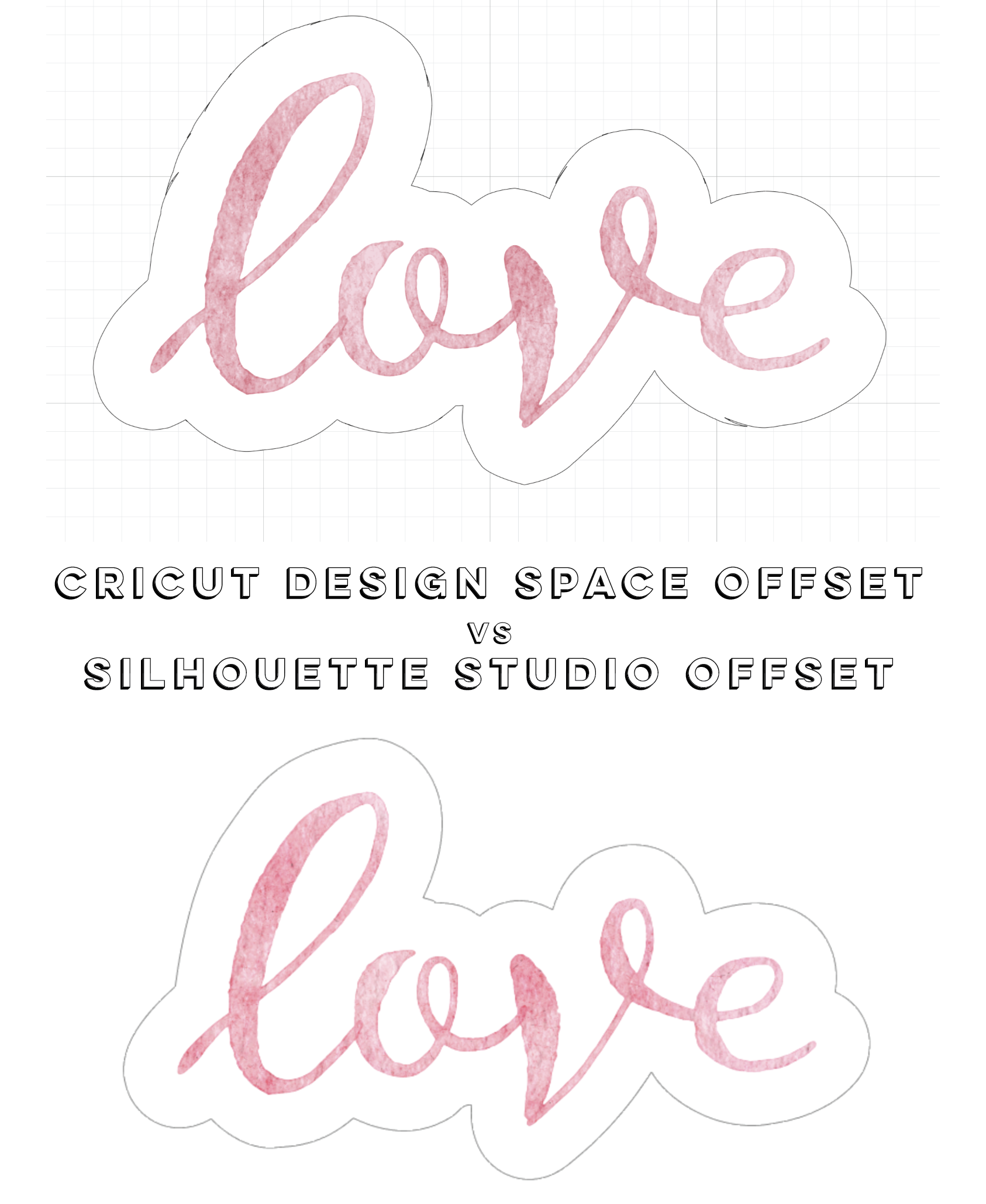
Here’s a quick little comparison of the offset feature in Cricut Design Space vs in Silhouette Design Studio.

Offset in Cricut Design Space

For the offset feature in Cricut Design Space I’m using the most current version to date 6.6.112. According to the Offset pop up window this feature is still in Beta.

Some things to take note of for using offset in Design Space:

  • You MUST be in the NEW Canvas Style, it is not available in the Classic Canvas setting. So that’s a bummer when you have to switch your project to Classic Canvas when the New Canvas is being glitchy (which seems to happen pretty frequently in past versions of Design Space, we’ll see how the newest update has improved).

  • It is currently only available in the Desktop version of Design Space. That’s a real bummer for the sticker makers who want to do everything on their iPad or Android Tablet.

To start, I uploaded a PNG file of a watercolor design I made using Procreate. One of the things I love about watercolor are the rough little edges. But I don’t necessarily want the rough edges on my cut line. Let’s see how the Cricut offset feature does with those rough edges.
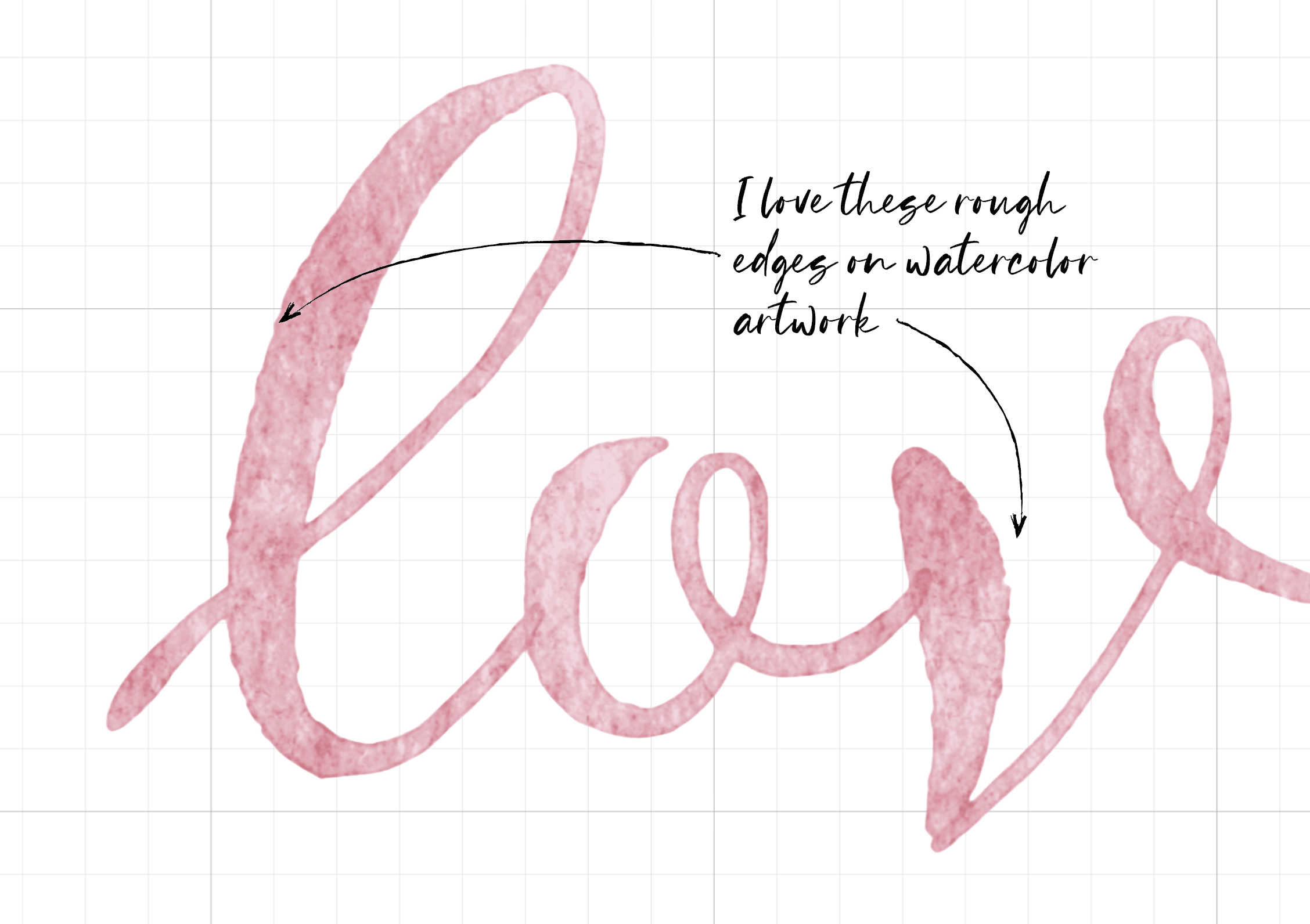
Watercolor Image Cricut Design Space

The default offset appears to be 0.25 inches. There are some obvious little bumps and some weird little jagged spots. I don’t see any kind of smoothing option, maybe something they could consider adding in the future.
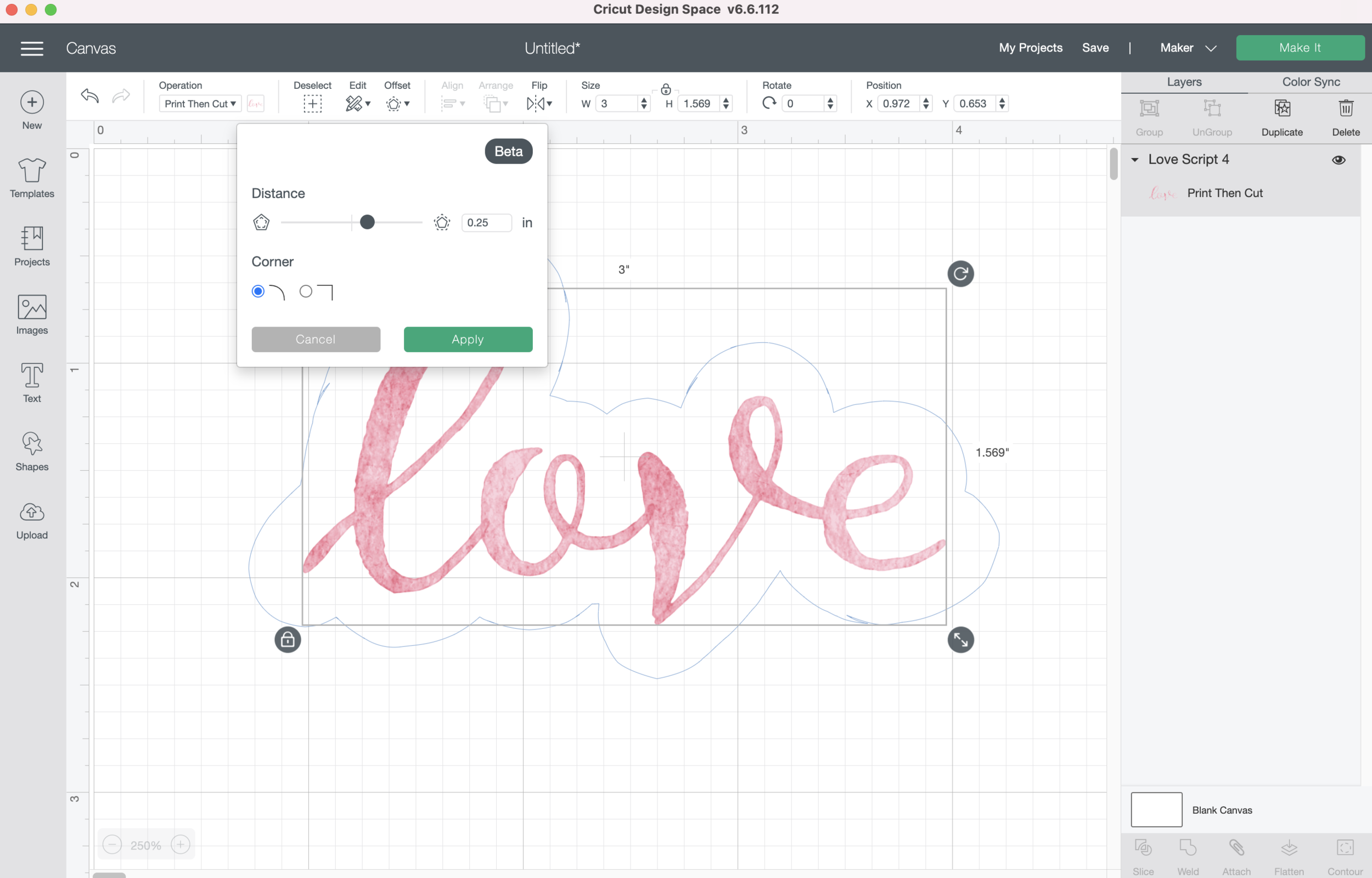
Cricut Design Space Offset

Next I’m going to try to make the offset a little narrower, I’m going to use 0.125 inches (That’s 1/8 of an inch). I’m going to use the slider to adjust the measurement. There’s still quite a bit of bumpiness and some more jagged areas on the offset line.
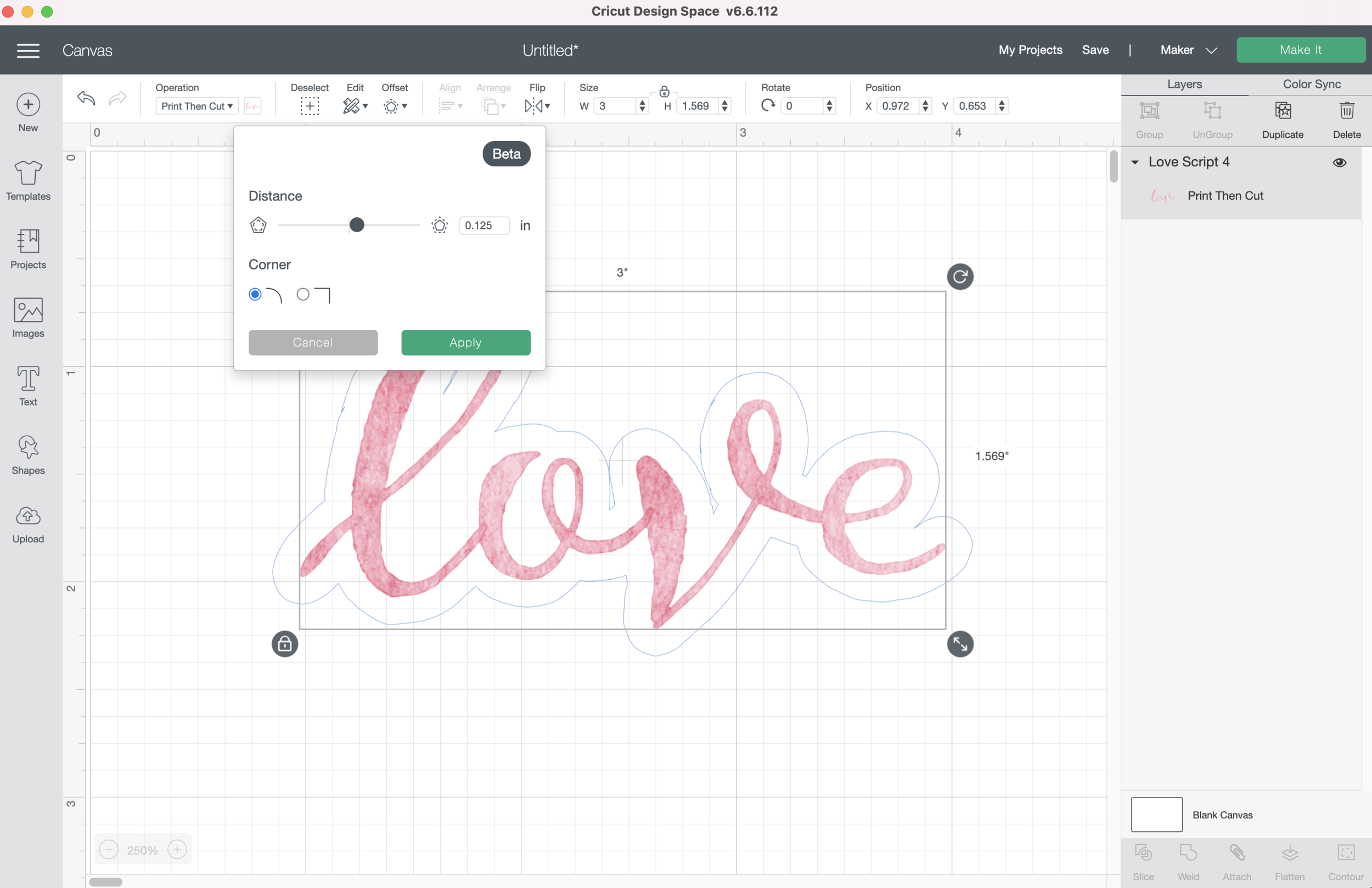
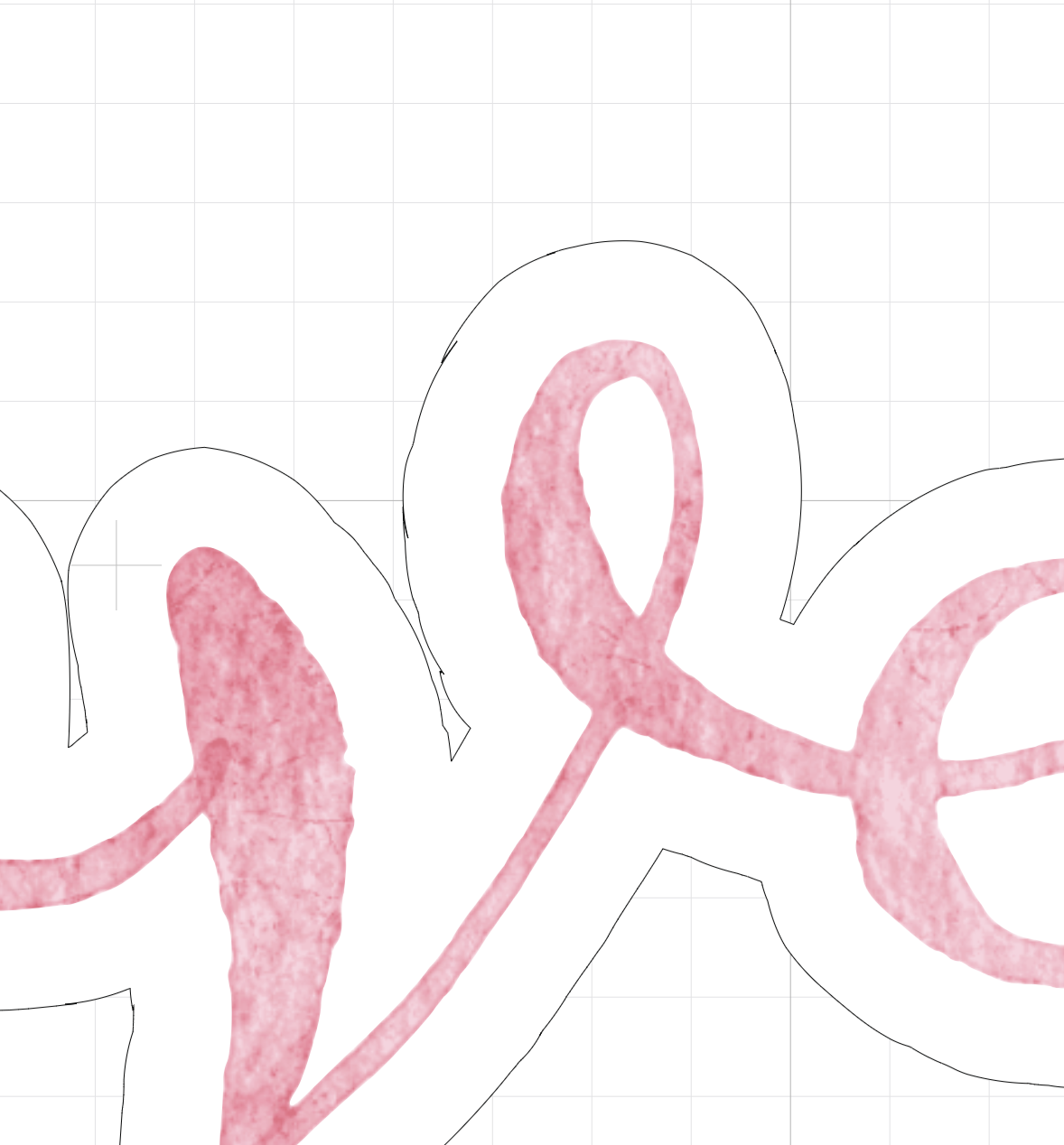
Cricut Design Space Offset
Cricut Design Space Offset Jagged

I can use the Contour function to get rid of the cut inside the “L” loop. In order to be able to use the Contour function I have to change my offset from “Print & Cut” to “Basic Cut.”

Cricut Design Space Contour

I’m also going to try an even smaller offset, 1/16 inch. I can use the slider, but it becomes more difficult to get the exact value for 1/16. It ends of being easier to just type it in the box 0.0625.

Again, I change the “Print then Cut” offset to a “Basic cut” so I can use Contour to remove the cut from inside the L loop and E loop.
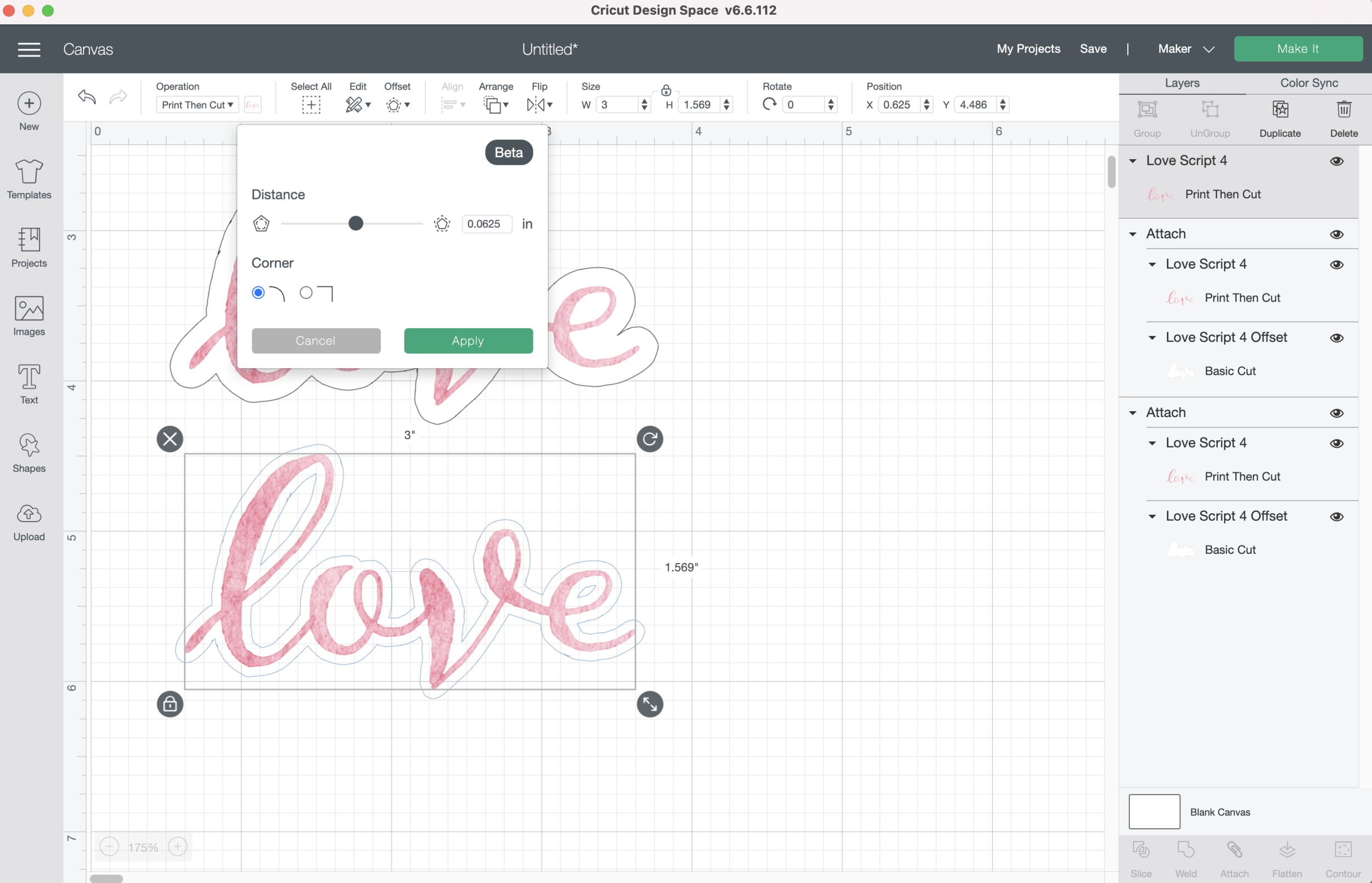
Cricut Design Space offset
Cricut Design Space Offset

Save your file and let’s get ready to test our offset cuts!

Don’t forget to flatten your artwork and the offset together!

Cricut Offset Flatten Artwork

I’m going to do a test Print then Cut. I’m using plain copy paper for my test so I don’t waste my sticker paper.

Screen Shot 2021-03-18 at 12.09.07 PM.png

The little jagged pieces are definitely there, they don’t look as terrible once I pull the piece off the mat. But I would never sell a sticker with this kind of rough cut edge. Yes, I even used a brand new blade for this cut!

Cricut Offset Cut Test

I tried this little guy too. He’s a PNG I imported from procreate. The offset is 1/16 inch. There’s a weird little cut area by his ear. I changed the line to a Basic cut line and there’s no option to use the contour feature, so I can’t even get rid of the line! I didn’t even bother printing and cutting him. I’m better off adding an offset to him via Illustrator like in my previous posts.

Cricut Offset Issues

The offset probably works great for images with smooth edges and vectors, but that’s not always the kind of artwork I’m using. Nice try Cricut, maybe try adding a smoothing option to the offset dialog box.

Offset in Silhouette Studio

Right out of the gate Silhouette Design Studio blows away Cricut Design Space. Am I being biased? Probably. But in the short time I’ve been using Silhouette Design Studio, it has been soooo much easier for me to achieve the offsets and cut lines that I want. Another Bonus that a lot of the Illustrator keyboard shortcuts also work in Silhouette Studio. Cmd + /- to zoom in and out, Alt + Drag to copy and paste, Spacebar to pan around my canvas. I’m loving Silhouette Studio so far!

I opened the same Love PNG file in Silhouette Studio. It does make my PNG gigantic initially, but it’s not a problem to shrink it down to size.

I tried the same offset measurements that I used in Cricut Design Space. I started out with a 0.25 inch Offset. You will need to select if you want an internal or external offset instead of Cricut’s slider bar. The offset is already so much smoother than the Cricut version, no little jagged bits!

Silhouette Studio Offset

Next I tried the offset at 1/8 inch (0.125). Again, waaaaaay smoother than the Cricut version.

Silhouette Studio Offset

Finally I tried a 1/16th (0.0625) offset. Still much, much better than the Cricut version. I can even refine the edge more by smoothing, adjusting or deleting anchor points on my offset path in the Silhouette software.

Silhouette Studio Offset

If I don’t want to cut the loops inside some of the letters I can easily select them and press “Delete”

Silhouette Studio Offset Adjustment

I even tested this little guy again, 1000x better than Cricut’s offset.
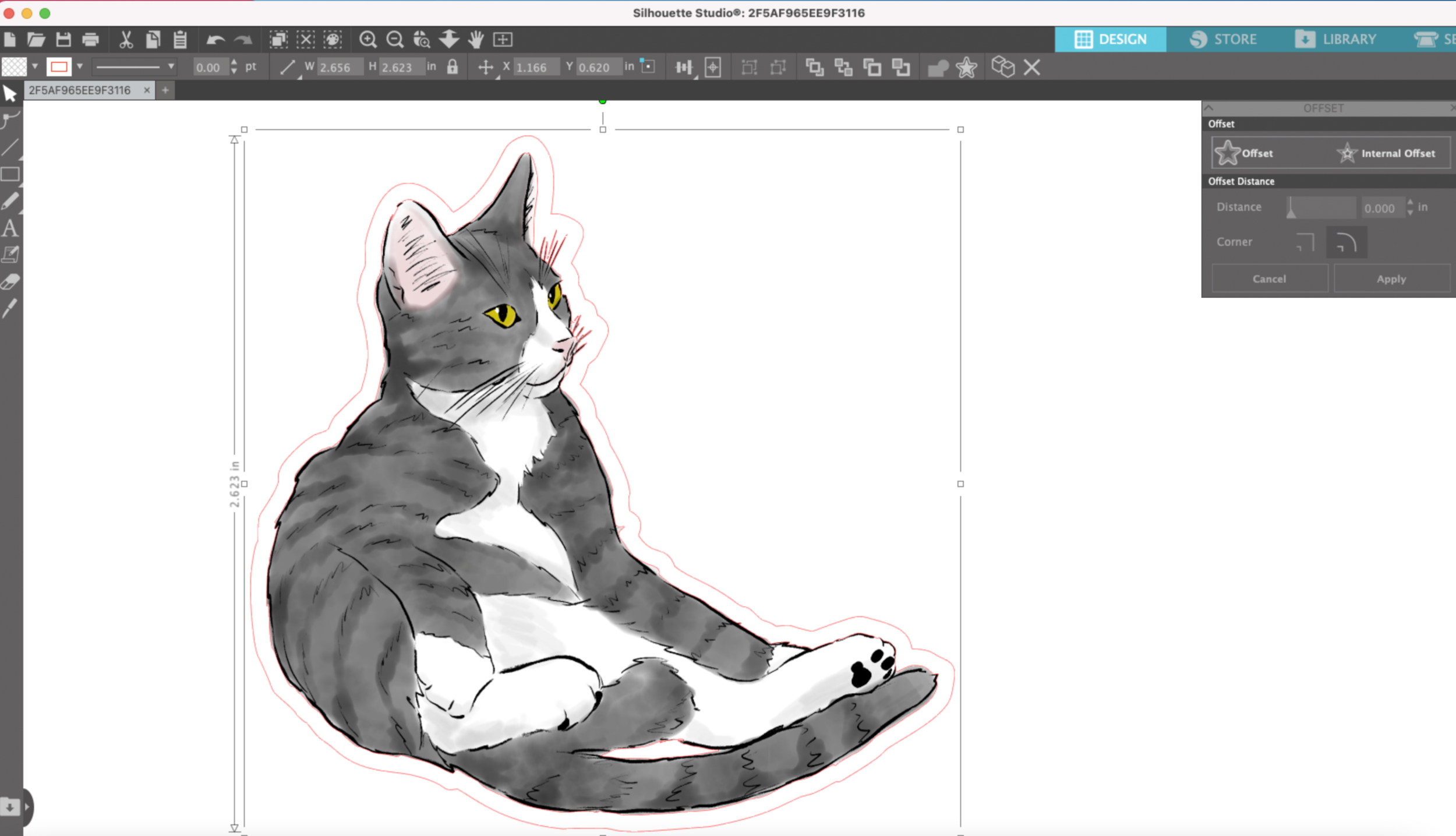
Silhouette Studio Offset

I can also refine the edges of his offset even more by using the Smooth tool, or deleting anchor points, or adjusting the anchor points.
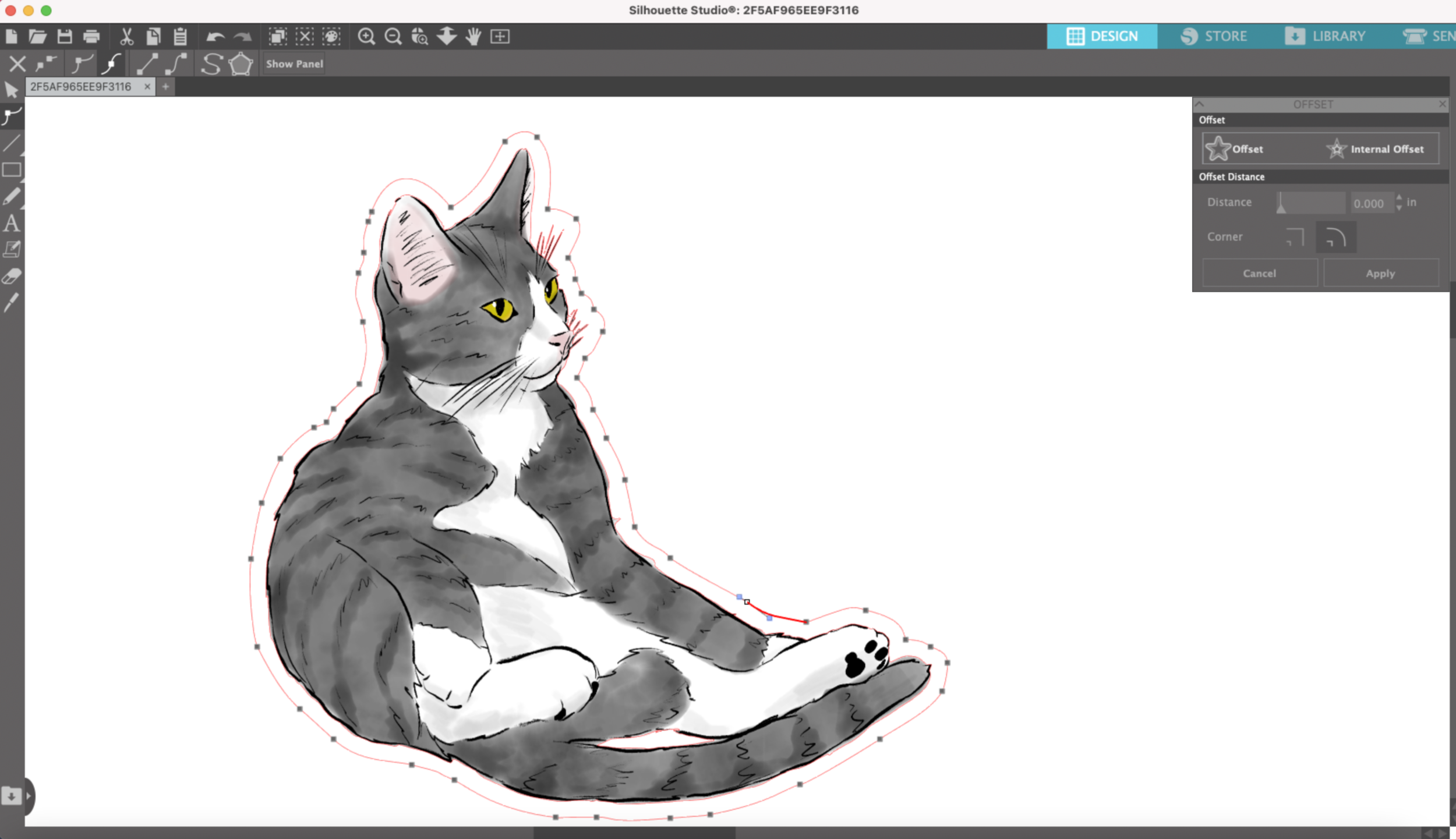
Silhouette Studio Offset Smoothing

I don’t have a Silhouette machine yet to test the cut on one of their machines. But I do have the Business Edition upgrade so I can save my file as a PNG and upload it to Cricut Design Space to test the cut.

I have to save this file with the offset as a PNG because an SVG with this type of watercolor artwork does not import correctly into Design Space.

Make sure the Offset stroke lines are set to white or no stroke so they don’t appear in the PNG file.

Silhouette Studio Offset

I select save as PNG to my hard d rive, check the transparent background box and make my DPI 300.

Silhouette Studio Save as PNG

Then I upload my file into Cricut Design Space as a Print then Cut image. I do have to resize again, for some reason PNGs are huge in both Design Space and Studio
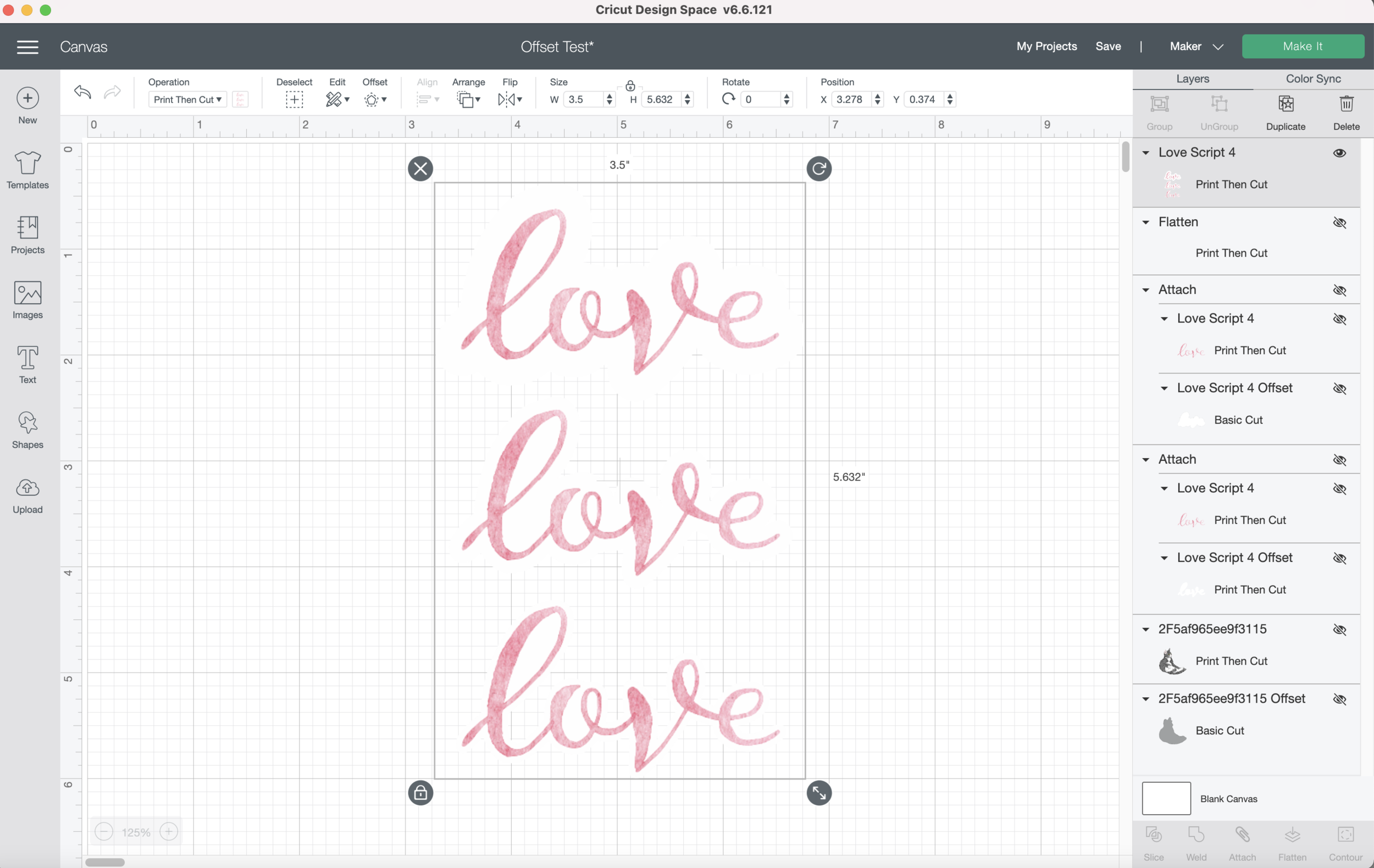
Silhouette offset file in Design Space

Look how much smoother and more refined the offset cuts are! I can’t wait to get my Silhouette machine to test how it cuts!

Screen Shot 2021-03-22 at 11.26.35 AM.png

No little jagged edges!

Sorry for the curling, these a just plain paper that I peeled off my blue mat.

Sorry for the curling, these a just plain paper that I peeled off my blue mat.

It’s Silhouette Studio for the win! The offset lines in Silhouette Studio already start out much smoother than in Cricut Design Space and I can always smooth them out even more or make adjustments to the offset lines in Silhouette Studio.

Tags: Cricut offset, Silhouette offset, Design Space update, sticker offset, Cricut Tutorial, sticker outline, Cricut vs silhouette, silhouette vs Cricut
← Cricut Design Space vs Silhouette Studio - Rounded CornersFilled Shapes and Words with the Foil Quill and Cricut Maker →
Back to Top

Copyright 2023, JoAnna Seiter. Images may not be used without approval. Terms & Conditions